Integrate with CodePay Terminal
CodePay provides Android Intent-based payment APIs for third-party apps running on CodePay terminals to process payments.
If you build a POS app directly on a CodePay terminal, you can use these APIs to take payments easily.
The next sections show how to use the Android Intent-based Payments API in a sample app. The app uses simple buttons to run payment actions.
See our official REST API reference and our example project.
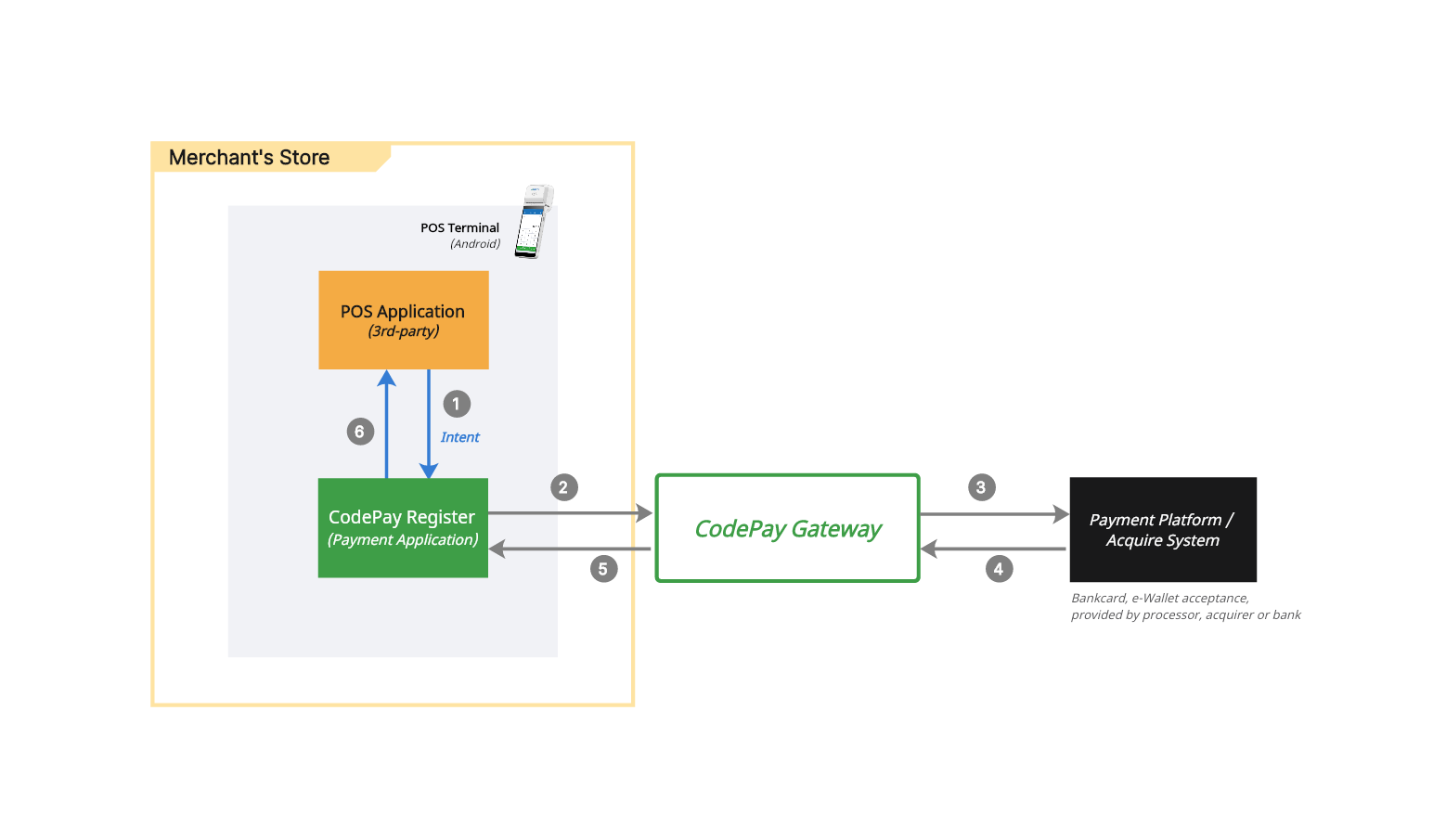
Create a payment request
Example of a Payment Request Intent:
private Intent buildIntent() {
  Intent intent = new Intent();
  intent.setAction("com.codepay.transaction.call");
  intent.putExtra("version", "2.0");
  intent.putExtra("app_id", {YOUR_PAYMENT_APP_ID});
  intent.putExtra("topic", "ecrhub.pay.order");

  JSONObject biz_data = new JSONObject();
  biz_data.put("trans_type", "1"); // Sale transaction
  biz_data.put("merchant_order_no", {YOUR_POS_REF_ID}); // Should be unique for each request
  biz_data.put("pay_scenario", "SWIPE_CARD"); //Bank Card payment
  biz_data.put("order_amount", "2.15");
  intent.putExtra("biz_data", biz_data.toString());

  return intent;
}
Use the built payment request
Add the button widget that can be tapped to initiate the payment.
Example of a Use the built payment request:
@Override
protected void onCreate(Bundle savedInstanceState) {
    super.onCreate(savedInstanceState);
    setContentView(R.layout.activity_main);
    Button paymentButton = findViewById(R.id.paymentButton);
    paymentButton.setOnClickListener(new View.OnClickListener() {
        @Override
        public void onClick(View v) {
            Intent intent = buildIntent();
            startActivityForResult(intent, 1);
        }
    });
}
Handle the response
After the payment flow finishes, the result comes back in onActivityResult().
The example below shows how to set up onActivityResult() and how to get the Payment object from the result.
Example onActivityResult()
@Override
protected void onActivityResult(int requestCode, int resultCode, Intent data) {
  String responseCode = data.getStringExtra("response_code");
  String responseMsg = data.getStringExtra("response_msg");
  String bizData = data.getStringExtra("biz_data");
  if (responseCode.equals("000")) {
      try {
          JSONObject jsonObject = new JSONObject(bizData);
          String amount = jsonObject.getString("order_amount");
      }catch(JSONException e){
          e.printStackTrace();
      }
  }
}
Accept a payment
Build a sale payment request intent.
Example sale transaction request:
Intent intent = new Intent();
intent.setAction("com.codepay.transaction.call");
intent.putExtra("version", "2.0");
intent.putExtra("appId", {YOUR_PAYMENT_APP_ID});
intent.putExtra("topic", "ecrhub.pay.order"); // Set this topic to accept payment call

JSONObject biz_data = new JSONObject();
biz_data.put("trans_type", "1"); // Sale transaction
biz_data.put("merchant_order_no", {YOUR_POS_REF_ID}); // Should be unique for each request
biz_data.put("pay_scenario", "SWIPE_CARD"); //Bank Card payment
biz_data.put("order_amount", "2.15");
intent.putExtra("biz_data", biz_data.toString());
Use an Intent to start the activity and process the payment.
You can set options in the biz_data builder to give extra instructions for how the payment should be handled.
on_screen_tip - This setting controls whether tips can be entered on the CodePay terminal screen. The default is false (no prompt tips). When trans_type = 1, 3, or 4, you can set this option.
on_screen_signature - This setting controls how electronic signatures are handled:
• true: Show the signature screen and print the signature on the receipt.
• false: Do not show the signature screen, but still print a signature area on the receipt.
receipt_print_mode - This setting controls how receipts are printed:
• 0: No receipt (default)
• 1: Print merchant copy
• 2: Print customer copy
• 3: Print both merchant and customer copies
When the sale payment flow completes, the response is available through onActivityResult()
Refund a payment
Build an unreferenced refund payment request intent.
An unreferenced refund lets you send money back to any card that is tapped, dipped, or swiped on the CodePay terminal.
For example, you can refund a person who did not make the original purchase, like someone returning a gift.
Example unreferenced refund transaction request: You can set trans_type to 3 in the biz_data builder.
Intent intent = new Intent();
intent.setAction("com.codepay.transaction.call");
intent.putExtra("version", "2.0");
intent.putExtra("appId", {YOUR_PAYMENT_APP_ID});
intent.putExtra("topic", "ecrhub.pay.order"); // Set this topic to accept payment call

JSONObject biz_data = new JSONObject();
biz_data.put("trans_type", "3"); // Refund transaction
biz_data.put("merchant_order_no", {YOUR_POS_REF_ID}); // Should be unique for each request
biz_data.put("pay_scenario", "SWIPE_CARD"); //Bank Card payment
biz_data.put("order_amount", "2.15");
intent.putExtra("biz_data", biz_data.toString());
Build a referenced refund payment request intent.
A referenced refund is linked to the original payment using that orig_merchant_order_no.
If orig_merchant_order_no is provided, the refund must be processed as a referenced refund.
In this case, the card does not need to be tapped, dipped, or swiped on the CodePay terminal.
Example referenced refund transaction request: Must set trans_type to 3 in the biz_data builder.
Intent intent = new Intent();
intent.setAction("com.codepay.transaction.call");
intent.putExtra("version", "2.0");
intent.putExtra("appId", {YOUR_PAYMENT_APP_ID});
intent.putExtra("topic", "ecrhub.pay.order"); // Set this topic to accept payment call

JSONObject biz_data = new JSONObject();
biz_data.put("trans_type", "3"); // Refund transaction
biz_data.put("merchant_order_no", {YOUR_POS_REF_ID}); // Should be unique for each request
biz_data.put("orig_merchant_order_no", {ORIGINAL_MERCHANT_ORDER_NO}); // The merchant order no from the original payment
biz_data.put("pay_scenario", "SWIPE_CARD"); //Bank Card payment
biz_data.put("order_amount", "2.15");
intent.putExtra("biz_data", biz_data.toString());
Use an Intent to start the activity and process the refund payment.
When the refund payment flow completes, the response is available through onActivityResult()
For a better experience, you can use our Open API to perform refund a referenced payment transaction made on other terminals, instead of being limited to on the current terminal only.
Cancel (Void) a payment
Build a cancel payment request intent.
You can cancel a payment any time while it is still in the batch.
Once the batch is closed, the payment can no longer be canceled.
Example cancel payment transaction request: Must set trans_type to 2 in the biz_data builder.
Intent intent = new Intent();
intent.setAction("com.codepay.transaction.call");
intent.putExtra("version", "2.0");
intent.putExtra("appId", {YOUR_PAYMENT_APP_ID});
intent.putExtra("topic", "ecrhub.pay.order"); // Set this topic to accept payment call

JSONObject biz_data = new JSONObject();
biz_data.put("trans_type", "2"); // Cancel (Void) transaction
biz_data.put("merchant_order_no", {YOUR_POS_REF_ID}); // Should be unique for each request
biz_data.put("orig_merchant_order_no", {ORIGINAL_MERCHANT_ORDER_NO}); // The merchant order no from the original payment
biz_data.put("pay_scenario", "SWIPE_CARD"); //Bank Card payment
biz_data.put("order_amount", "2.15");
intent.putExtra("biz_data", biz_data.toString());
Use an Intent to start the activity and process the cancel payment.
When the cancel payment flow completes, the response is available through onActivityResult()
For a better experience, you can use our Open API to perform cancel a payment transaction made on other terminals, instead of being limited to on the current terminal only.
Retrieve a payment
Build a retrieve payment request intent.
Use the ecrhub.pay.query topic to build an Intent to start an activity to retrieve a specific payment.
Example retrieve payment transaction request: Must set trans_type to 2 in the biz_data builder.
Intent intent = new Intent();
intent.setAction("com.codepay.transaction.call");
intent.putExtra("version", "2.0");
intent.putExtra("appId", {YOUR_PAYMENT_APP_ID});
intent.putExtra("topic", "ecrhub.pay.query"); // Set this topic to retrieve payment call

JSONObject biz_data = new JSONObject();
biz_data.put("trans_type", "2"); // Cancel (Void) transaction
biz_data.put("merchant_order_no", {YOUR_POS_REF_ID}); // The merchant order no from the original payment
intent.putExtra("biz_data", biz_data.toString());
Use an Intent to start the activity and process the retrieve payment.
When the retrieve payment flow completes, the response is available through onActivityResult()
For a better experience, you can use our Open API to perform retrieve payment transaction made on other terminals, instead of being limited to on the current terminal only.
Adjust a tip
Build adjust a tip request intent.
Use the ecrhub.pay.tip.adjustment topic to build an Intent to start an activity to add or adjust a tip to a payment.
It lets the merchant add or adjust a tip to an existing payment.
For example, the merchant can enter a tip amount written on a receipt.
Example adjust a tip request:
Intent intent = new Intent();
intent.setAction("com.codepay.transaction.call");
intent.putExtra("version", "2.0");
intent.putExtra("appId", {YOUR_PAYMENT_APP_ID});
intent.putExtra("topic", "ecrhub.pay.tip.adjustment"); // Set this topic to adjust a tip

JSONObject biz_data = new JSONObject();
biz_data.put("merchant_order_no", {YOUR_POS_REF_ID}); // The merchant order no from the original payment
biz_data.put("tip_adjustment_amoun", "2.99"); // Tip amount
intent.putExtra("biz_data", biz_data.toString());
Use an Intent to start the activity and process the tip adjustment.
When the tip adjustment flow completes, the response is available through onActivityResult()
For a better experience, you can use our Open API to perform a tip adjustment on payments made on other terminals, instead of being limited to on the current terminal only.
Batch close
Build batch close request intent.
Use the ecrhub.pay.batch.close topic to build an Intent to start an activity to manually closeout the current batch of transactions.
Example batch close request:
Intent intent = new Intent();
intent.setAction("com.codepay.transaction.call");
intent.putExtra("version", "2.0");
intent.putExtra("appId", {YOUR_PAYMENT_APP_ID});
intent.putExtra("topic", "ecrhub.pay.batch.close"); // Set this topic to do batch close
Use an Intent to start the activity and process batch close.
When the batch close flow completes, the response is available through onActivityResult()
For a better experience, you can use our Open API to perform all-terminals batch close at once, instead of being limited to on the current terminal only.